

Theory
Repository and commits: reading a GitHub repo page
What a repository in GitHub is, its page from top to bottom, what a single commit tells you, and commit message best practices.
~11 min read · 10 exercises · 250 points
Before you start
Your first repository
You're still on CatChow's product team, and now you have access to the shop's website on GitHub: github.com/catchow/website. At first glance the page is a wall of buttons, tabs and folders.
In this lesson you'll read a repository page from top to bottom, like a newspaper, find out what a single commit tells you, and see what makes a commit message useful to the people who read the history later.
The header and its three buttons
On CatChow's product team almost everything starts at github.com/catchow/website. A repository on GitHub is one project's files with their whole history of commits, plus the team's issues, pull requests and releases around them. Read its page like a newspaper, top to bottom; buttons move now and then, but the parts stay the same.

At the very top sit the owner and the name, catchow / website, and a Private badge: only the team can see it. On the right are three buttons:
Watchcontrols notifications. You choose the level:All Activity, only threads you take part in or are mentioned in, orCustom, where you can tick just releases or pull requests.Staris a bookmark and a public "I like this". No notifications.Forkmakes your own copy of the repository. It matters for open-source projects; inside your own company you'll rarely need it.
catchow / website
Owner and repository name
Watch
Get notifications about activity: new pull requests, issues, releases
Fork
Make your own copy of the repository (you rarely need it inside your own company)
Star
Bookmark the repository and show interest
For a PM the useful one is Watch with Custom: releases and pull requests, without the noise of every comment.
- Do
Watch→Custom→ tickReleasesandPull requestsYou hear about what ships, not every comment.
- Don't
Starthe repository and expect to hear about new releasesA star is only a bookmark.
The page from top to bottom
The Code tab of a repository page is laid out from general to specific, and each part answers its own question.
- Header: owner, name and the
Watch,Fork,Starbuttons. Whose project is this? - Tabs:
Code(where you are),Issues(bugs and tasks),Pull requests(proposed changes),Actions(automatic checks and builds),Projects(boards). Where is the work discussed? - Branch selector showing
main, with counters for branches and tags. Which version of the files am I looking at? The files below always belong to the selected branch. - Latest commit bar: author, message, short hash, "3 days ago", and a counter like
412 Commitson the right that opens the full history. What happened last? - File list: folders and files, each with the message of the last commit that touched it and how long ago.
- README, rendered under the list: the team's own introduction to the project.
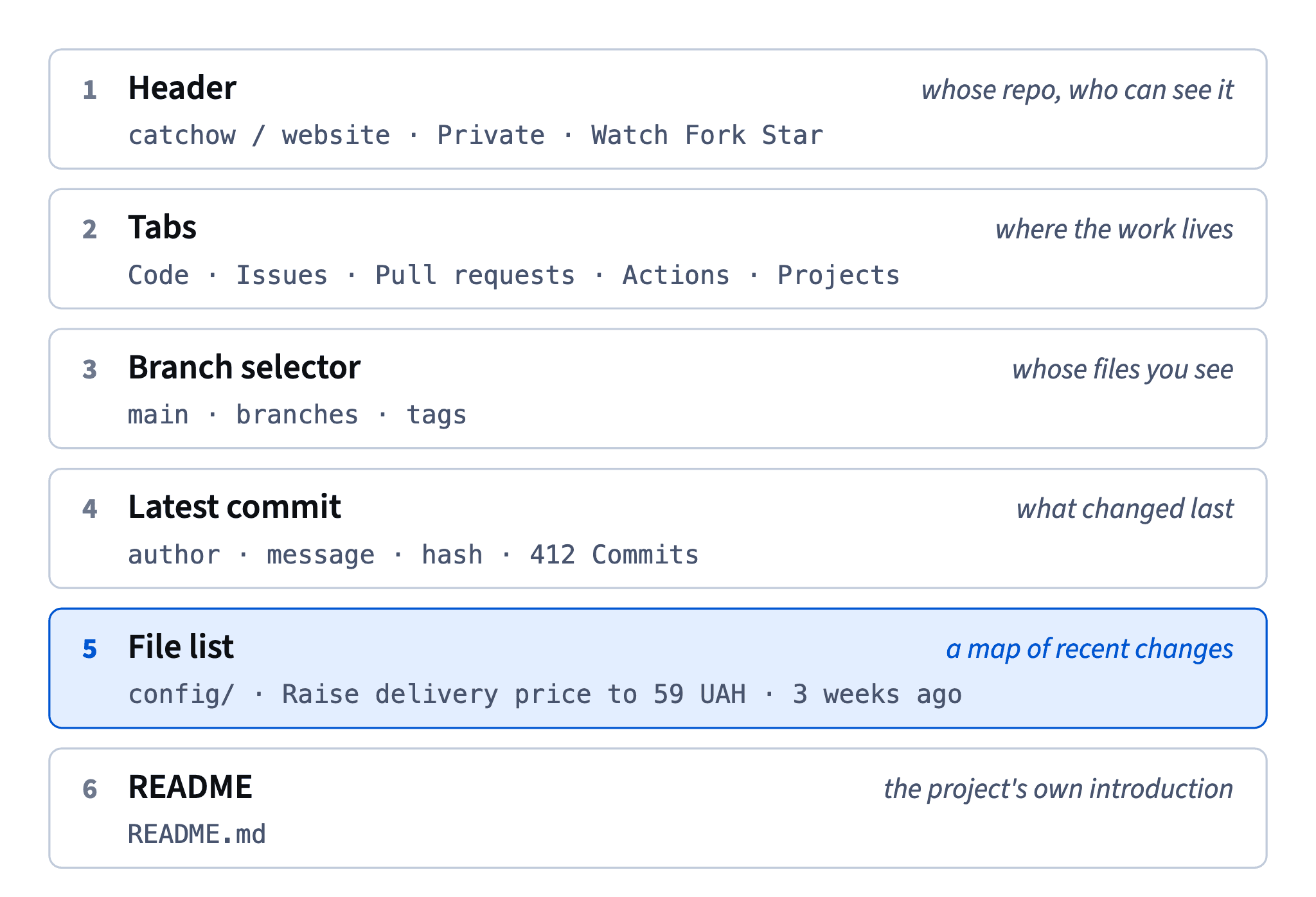
Once you know the order, a busy page becomes a quick scan: glance at the latest commit, check the branch, then go to the file or tab you need.
- DoCheck that the branch selector shows
mainbefore you quote a file to the team.Another branch may hold an unfinished version.
- Don'tLook for the README at the top of the page.
It's rendered under the file list.
The file list is a map of recent changes
Where would CatChow's delivery price live? Look at the rows of the file list. Each folder and file has two extra columns: the message of the last commit that touched it and how long ago that was.
So config/ reads "Raise delivery price to 59 UAH · 3 weeks ago", and pages/ reads "Add summer promo banner · 3 days ago". Without opening anything, you can see which corners of the project moved recently and which have been quiet for months. That makes the file list a handy map when someone asks "what changed on the site lately?"
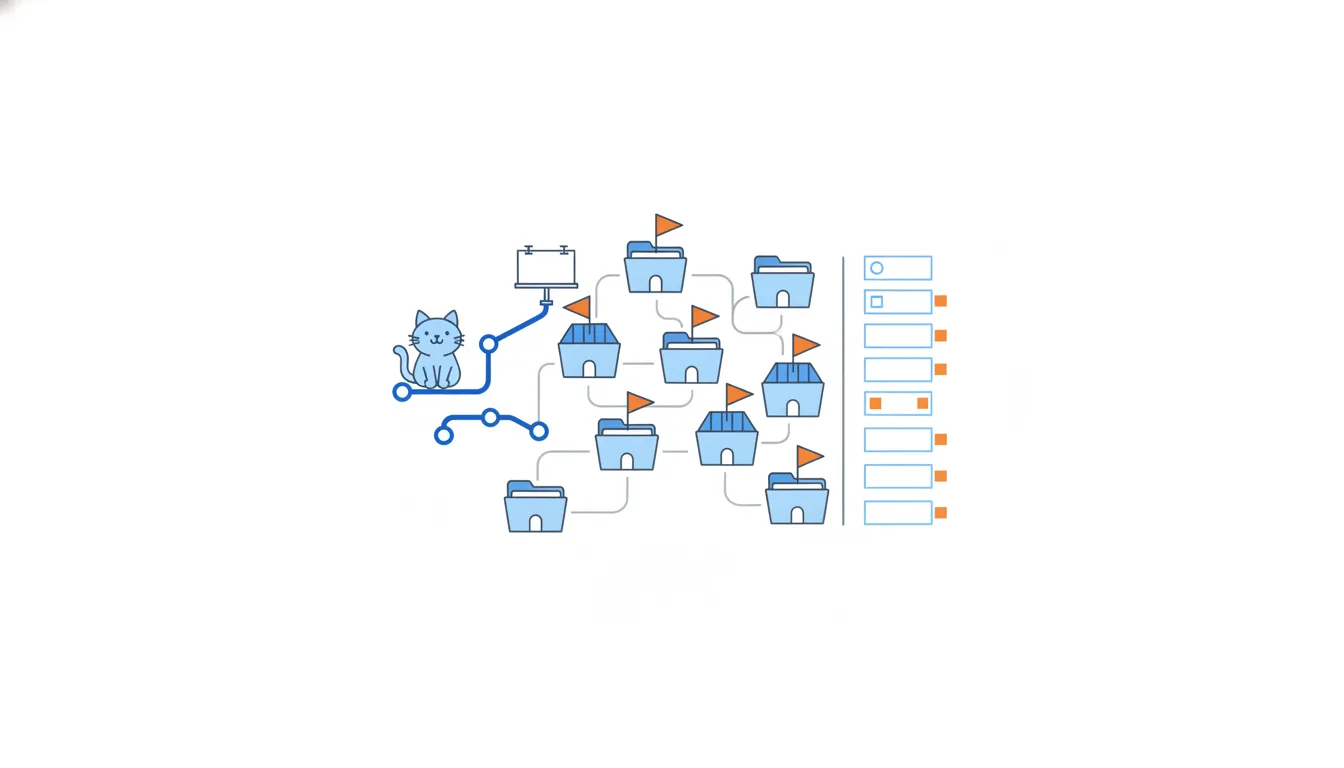
Remember what the column is not. It shows the latest change only, not the first one: the folder may be years old, and many earlier commits may have touched it. To see everything that ever happened to a file, open its history (the History button on the file's page), which is the next lesson's topic.
Click the message itself to land on that commit's page with its author, hash and diff.
- Do"
pages/changed 3 days ago,config/3 weeks ago, so the banner is the fresher change." - Don't"
config/was created 3 weeks ago."The row shows the last change, not the first.
What each part tells you
Every part of the repository page answers one question, and knowing which saves a lot of clicking.
- The branch selector showing
maintells you which version of the files you're looking at. Switch it to another branch and the file list changes with it. - The commit counter, such as
412 Commits, is a link to the full history of that branch, newest on top. - A file row such as "Fix typo in footer · 2 months ago" shows the last commit that changed that file, and when.
- The README is the team's introduction to the project: what it is, how to run it, who to ask. A good README is the first thing to read in an unfamiliar repository.
- The
Pull requeststab lists proposed changes that are being discussed and reviewed before they reachmain; theIssuestab lists bugs and tasks.
When a stakeholder asks you something, match the question to the part: "what's live?" means main, "what changed?" means history, "what's coming?" means pull requests.
- Do"What's about to change on the site?" → open the
Pull requeststab - Don'tRead files with another branch selected and report them as what's live
Live is what's in
main.
Find a file or a sentence
Clicking through folders works when you know where to look. When you don't, GitHub has two search tools, and they search different things.
Go to file, the button above the file list (or the t key), finds files by name. Type "delivery" and you get every file with that word in its path, such as pages/delivery.html or config/delivery.json.
The search box at the very top of GitHub searches inside files. On a repository page it offers to search just that repository, which adds repo:catchow/website to the query. Put an exact phrase in quotes, for example repo:catchow/website "Free delivery from 800 UAH", and you get the file and the line that contain it.
This is how developers find copy that marketing asks them to change: searching is faster than remembering the folder structure, even for the people who built it. For a PM or a marketer it's the quickest way from "the site says X" to "X lives in this file, last changed by this commit".
- Do
repo:catchow/website "Free delivery from 800 UAH"in the top search boxFinds the exact line inside a file.
- Don'tType the whole sentence into
Go to fileIt only matches file names.
Inside one commit
A commit is one saved step in the history: a set of changes with an author, a date, a message and a unique hash. Click the message in the config/ row and you land on the commit page for a41c09e.
Read it top to bottom. First the message, then the author and "committed 3 weeks ago". On the right, the parent commit (the step it was built on) and the hash: the page shows seven characters, but the full hash is 40 long, and both point to the same commit. Below comes a summary such as "Showing 1 changed file with 1 addition and 1 deletion" and the changed lines in red and green, the diff.
Look for a second line in the message. Here it says "Courier rates went up on 1 June; finance asked to pass it on. (#128)". That #128 links to the pull request where the change was discussed, so commit plus PR usually tells the whole story. What you won't find on a commit page: the list of branches, or anything about customers, such as how many saw the change.
- DoFollow the
#128link from the commit message to read the discussion behind the change. - Don'tLook for the number of customers who saw the change on the commit page.
That's a question for analytics.
A version is a point in history
The branch selector also counts tags. A tag pins a permanent name to one commit, usually a version. When CatChow releases, the team tags the commit that went live, for example v2.4.0.
The key idea: a commit is a snapshot of the whole project at that moment, not just the lines it changed. So the tagged commit carries all the earlier work with it. In a history like this:
- c1 "Add wishlist button"
- c2 "Fix cart total on mobile"
- c3 "Add gift cards" ←
v1.8.0 - c4 "Change hero image"
- c5 "Add product ratings"
release v1.8.0 contains c1, c2 and c3. The commits after the tag, c4 and c5, are already in main but not in that version; they'll go into the next release.
9d04e61Fix typo in footera41c09eRaise delivery price to 59 UAHc5d8e02Add pet passport fieldv2.4.0e7c3b19Add summer promo bannerf02a6d4Update FAQ answersmain
Commit graph, oldest first: `main` with a release tag 1. commit 9d04e61 on main "Fix typo in footer" 2. commit a41c09e on main "Raise delivery price to 59 UAH" 3. commit c5d8e02 on main "Add pet passport field", tagged v2.4.0 (highlighted) 4. commit e7c3b19 on main "Add summer promo banner" 5. commit f02a6d4 on main "Update FAQ answers"
This is useful when a customer says "the gift cards were there in v1.8.0, but ratings weren't": find the tag, and everything above it in our diagrams (everything older) is in that version.
- Do"v1.8.0 is c3 plus everything before it."
- Don't"v1.8.0 only contains the gift cards commit."
A commit is a snapshot of the whole project.
A tag is a label, not a copy
It's tempting to picture a version as a frozen copy of the site kept in a drawer. In Git it's much lighter: a tag is just a name pinned to one existing commit. No files are copied. Because every commit is already a snapshot of the whole project, the name is enough to say "this exact state is version 2.4.0".
Tags and branches look alike in the branch selector, but they behave differently. A branch moves: each new commit on main carries the branch name forward. A tag stays put: v2.4.0 points to the same commit forever, which is exactly what you want from a version.
Git graph · shown above
Engineers create one with git tag v2.4.0 and send it to GitHub with git push origin v2.4.0. On GitHub, a release is usually built on a tag and adds release notes and downloads; you'll read releases in module 4.
For a PM, a tag answers a precise question: "what exactly was in the version the customer had?" Open the tag, and you see the files as they were at that moment.
- Do
git tag v2.4.0on the commit that went liveA permanent label; nothing is copied.
- Don'tKeep a folder
website-v2.4.0-final/with a copy of every fileThat's the "final-v3" problem all over again.
Commit messages that help the next reader
The commit "Raise delivery price to 59 UAH" by Daniel, a CatChow web developer, answered support's question in seconds. Good commit messages follow a few habits:
- A short summary line, about 50 characters, written as a command: "Fix", "Add", "Raise". Test it by finishing the sentence "If applied, this commit will…".
- Specific wording: "Raise free-delivery threshold to 1000 UAH", not "Update prices".
- If the reason isn't obvious, a blank line and then the why: what problem it solves, who asked. The diff already shows what changed; only the message can say why.
- One commit, one idea. If the summary needs "and" three times, it should have been three commits. Small commits are easier to read, check and undo.
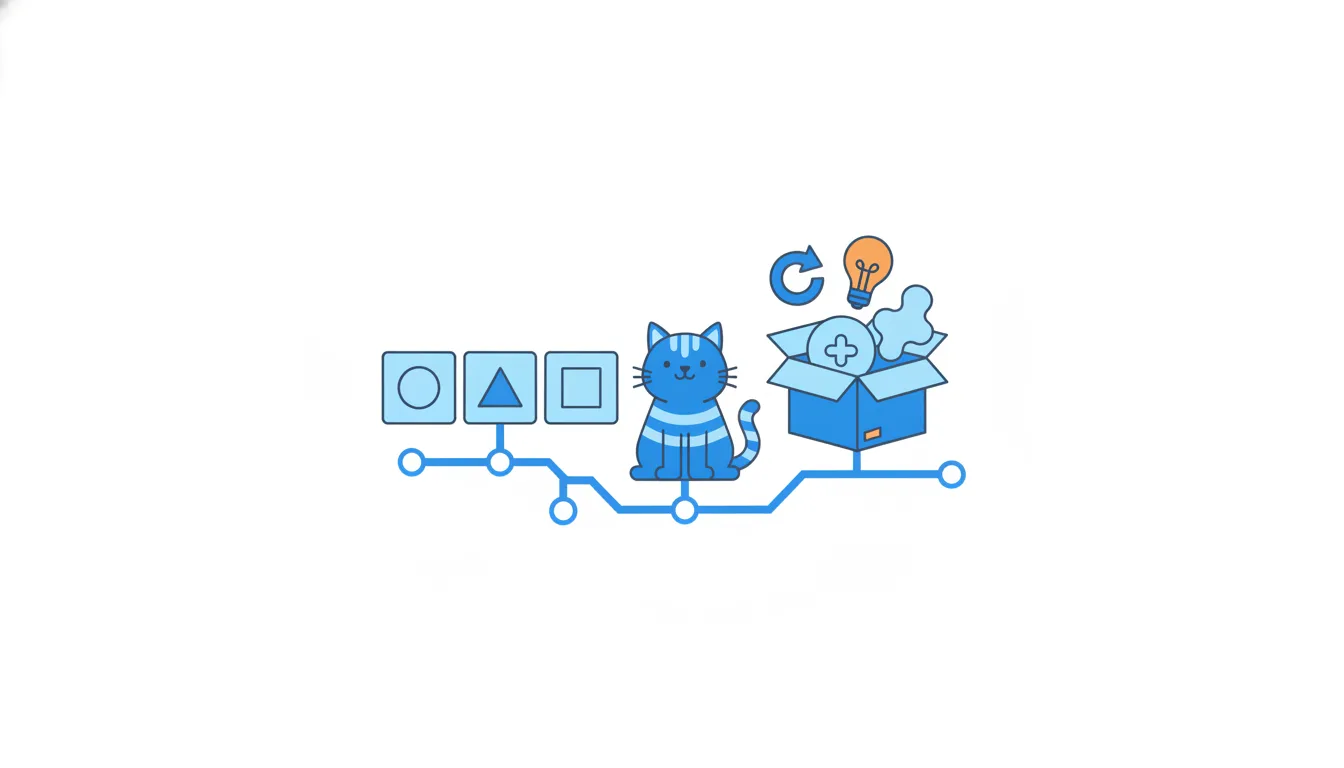
Messages like "fix", "changes" or "stuff after the meeting" cost the next reader time, and the next reader is often you, six months later, trying to explain a number to finance. The same habits make a pull request title readable too.
- Do"Raise free-delivery threshold to 1000 UAH", then a blank line and "Courier prices went up; finance asked to protect margins."
A specific command plus the why.
- Don't"fix"
Fix what, and why?
- Don't"Changes after the meeting, prices and some other stuff"
Several ideas, none of them clear.
Ready to practise?
Answer the lesson's exercises and earn 250 points the first time you finish it.
Start the exercises