

Theory
Why teams keep history: version control without fear
What version control is, Git vs GitHub and how the two differ, and why looking around a repository can't break anything.
~11 min read · 10 exercises · 250 points
Before you start
Where you work
You've just joined the product team at CatChow, an online shop of about thirty people that sells cat food, treats and litter. Its website lives in a repository on GitHub, and developers change it every week, yet outside their team few people can say what changed or why.
Over this course you'll learn to read the team's work on GitHub: history, branches, pull requests and releases, and you'll even make a small change yourself, all in the browser. This first lesson covers the basics: what version control is, how Git differs from GitHub, and why looking around can't break anything.
From final-v3 to one history
CatChow keeps its website in a repository on GitHub. Support has a question: why does delivery now cost 59 UAH instead of 49? Marketing says it wasn't them. Without a shared history, that's a week of asking around.
Picture the usual alternative: prices.xlsx, prices-new.xlsx, prices-final-v3.xlsx in a shared folder. Two people edit at once, one overwrites the other, the old numbers are gone, and nobody knows which copy is the real one.
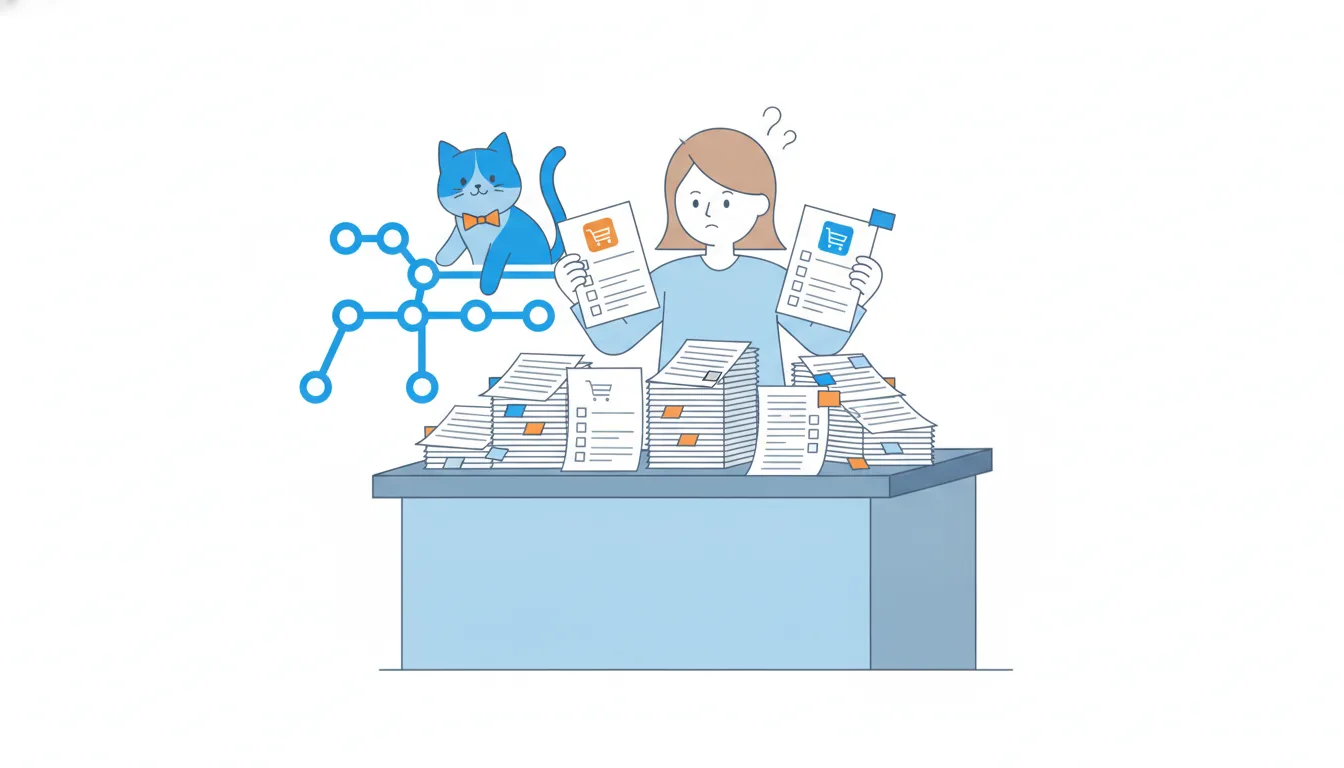
Version control fixes exactly that. It keeps one project and saves every state of it as a separate step. Each step is a commit, and it records who made it, when, and a short message on why. The chain of commits is the project's history.
A shared drive also lives in the cloud. What it doesn't give you is the explained trail of changes, a way back to any earlier state, and safe parallel work for several people. And version control publishes nothing by itself: getting a change onto the live site is a separate, deliberate step.
- Don't
faq-v4-final.docx,faq-v4-final-2.docx,faq-v4-REALLY-final.docxHalf-copies, and no answer to "who changed this, and why?"
- DoOne
faq.mdin the repository, with commits like "Update return policy for opened bags"One current version plus a history of who, when and why.
Git is the engine, GitHub is the office
People say "Git" and "GitHub" as if they were one word. They are two different things that work together.
Git is the version control system itself. It records commits and keeps the history. Engineers run it on their own laptops and type commands in a terminal: git commit saves a step, git log lists the history, git push sends new commits to the shared copy of the project.
GitHub is a website that stores Git repositories and adds teamwork on top: pull requests to propose and discuss changes, reviews, issues for tasks and bugs, and releases. Think of Git as the engine and GitHub as the office built around it. Other hosting sites exist, but the Git underneath is the same.
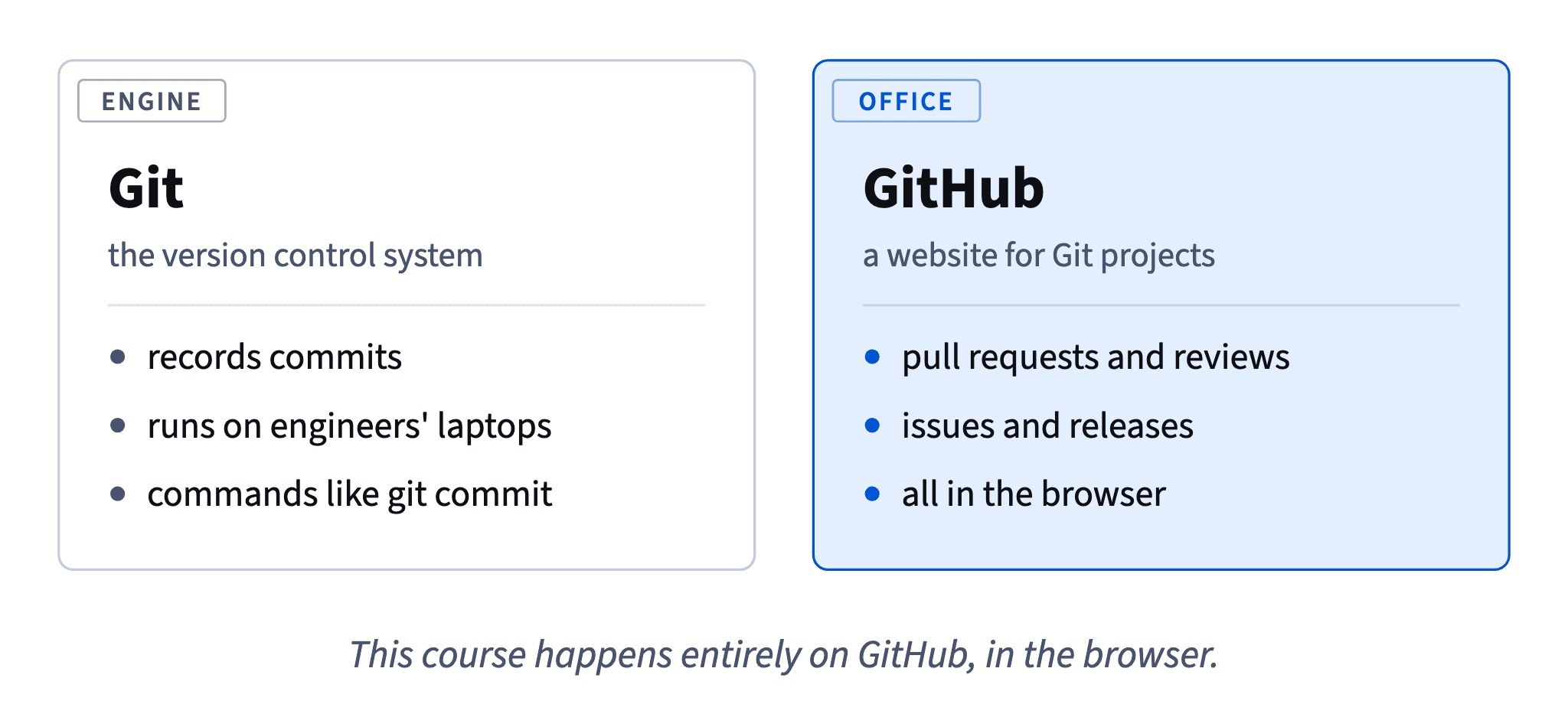
For a PM or a marketer this split is good news. Everything you need to read (files, commits, history, pull requests) is in the GitHub web interface, in the browser. When an engineer mentions a command, it helps to know what it does, but you never have to type one.
- Do"Daniel committed the fix in Git and opened a pull request on GitHub."
Commits come from Git; the discussion lives on GitHub.
- Don't"I'll leave a review comment in Git."
Reviews and comments are GitHub features, not part of Git.
Reading a history diagram
A project together with its whole history is a repository, or repo. CatChow's is catchow/website: page templates, texts, images and a config file with prices. Its main line of work is the main branch, called main.
In this course, history is drawn as dots on a line. Each dot is one commit with its message next to it. Time runs top to bottom: the oldest commit is at the top, the newest at the bottom. To find what happened last, look at the last dot.
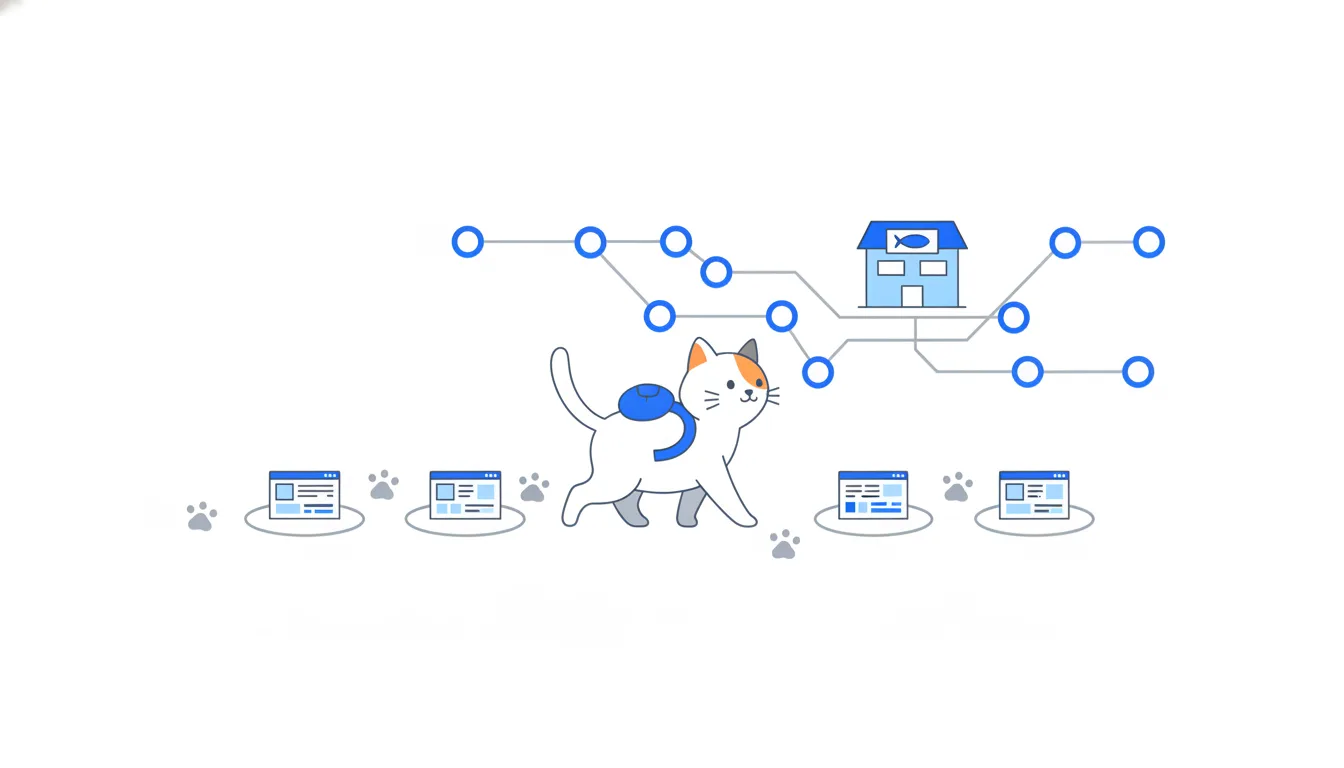
In the CatChow history the fourth dot reads "Raise delivery price to 59 UAH". The support mystery is solved in seconds, without asking anyone.
1c2e7d0Add delivery page5b8f3a2Update cat food photos9d04e61Fix typo in footera41c09eRaise delivery price to 59 UAHe7c3b19Add summer promo bannermain
Commit graph, oldest first: Recent history of `main` in catchow/website 1. commit 1c2e7d0 on main "Add delivery page" 2. commit 5b8f3a2 on main "Update cat food photos" 3. commit 9d04e61 on main "Fix typo in footer" 4. commit a41c09e on main "Raise delivery price to 59 UAH" (highlighted) 5. commit e7c3b19 on main "Add summer promo banner"
One warning before you open GitHub itself: its commit list runs the other way, newest on top, like a news feed. Always check which way a list is sorted before you say what came first. Also notice that the messages are in English: most teams write them that way, whatever language they speak in the office.
- DoIn a course diagram, read the bottom dot as the latest commit.
- Don'tAssume GitHub's commit list is sorted the same way as the diagrams.
On GitHub the newest commit is at the top.
What every commit carries
The delivery-price commit names its author: Daniel, a CatChow web developer. Asked in the chat, he barely remembers it: the courier company raised its rates and finance asked to pass the increase on. He doesn't need to remember. The history does.
Git records the same five things for every commit, always:
- the changes to the files;
- the author;
- the date and time;
- the commit message, a short note on what changed and why;
- a unique id, the commit hash, such as
a41c09e.
Some things are not part of a commit, even though you'll see them nearby on GitHub. Who approved the change belongs to the pull request, a GitHub feature. Whether the change is live on the website depends on deployment, which Git doesn't track. So when you need "who signed this off?" open the pull request, and for "is it on the site yet?" ask the team or check the release, not the commit.
- DoTo learn why delivery went up, read the commit message and its author: "Raise delivery price to 59 UAH", Daniel.
- Don'tLook in the commit for who approved the change.
Approvals live in the pull request.
The commit hash, a fingerprint
Every commit gets a unique id called the commit hash. Git calculates it from the commit's contents, so no two commits share one. The full hash is 40 characters of digits and the letters a–f; people almost always quote just the first seven, like a41c09e, which is enough to point to one commit in a project.
That's why engineers paste hashes into chats and tickets: a hash is a precise address. On GitHub you can paste it into the search box of the repository, or open a link that ends in /commit/a41c09e, and you'll land on that exact change with its author, time, message and diff. In a terminal the same lookup is git show a41c09e.
Don't confuse a hash with the other names you'll meet. A branch has a readable name like main and moves forward as work is added. A tag such as v2.4.0 is a human-friendly label pinned to one commit, usually a release. The hash is Git's own id, and it never changes.
- Do"The price change is in
a41c09e, here's the link."A hash plus a link is a precise address.
- Don't"It's the commit from sometime last month, on main."
Vague; someone has to scroll the history to find it.
Why reading can't break anything
The usual fear on a first visit to GitHub is that one wrong click will take the shop down. It won't. Reading changes nothing: opening files, commits, branches and pull requests is as safe as reading a page in a wiki.
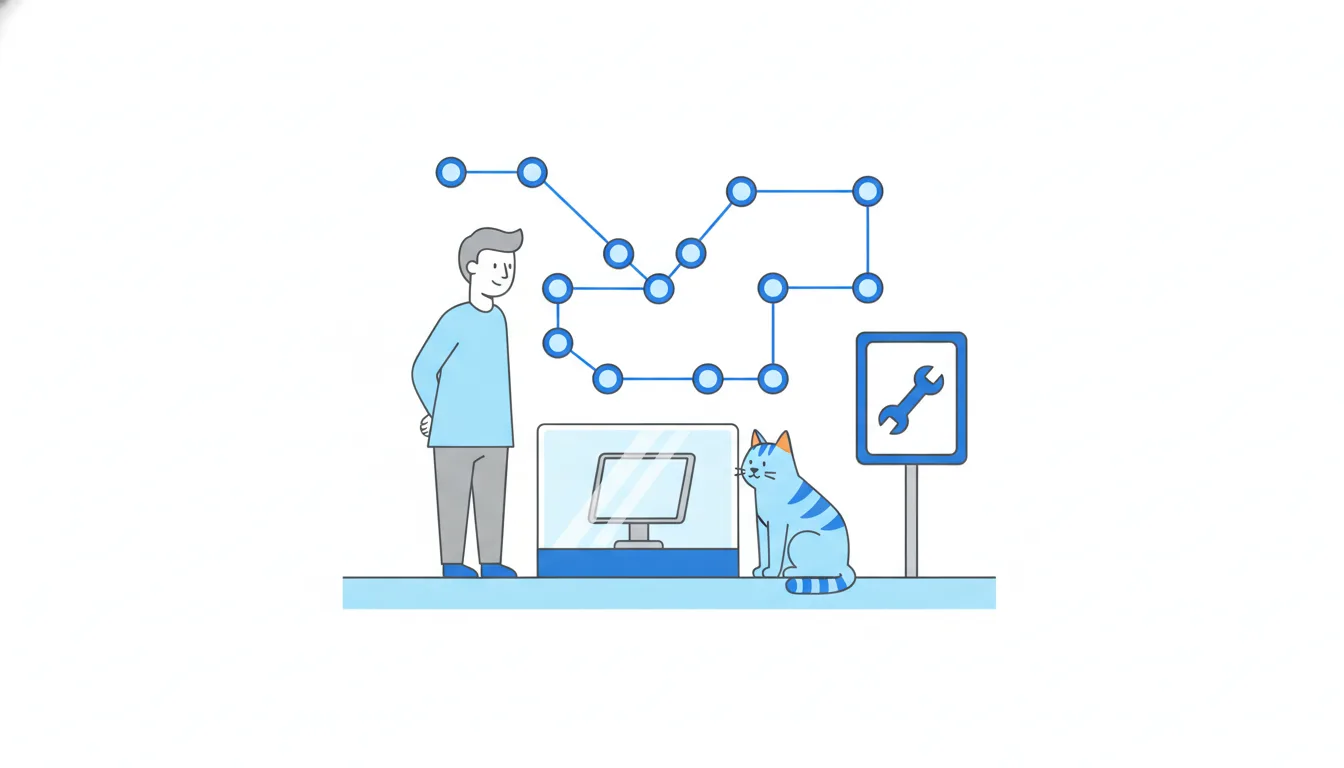
The live site changes only through a deliberate chain of steps. Someone proposes a change in a pull request, a colleague reviews it, the change is merged into main, and then it's deployed to the site. At CatChow every merge into main goes through review first, so a stray click by a visitor can't skip that chain.
Even a bad change that does reach the site isn't a disaster. Git keeps the whole history, so the team can undo a commit with a new one or go back to any earlier state. That's why this course encourages you to click around freely: open old commits, compare versions, read discussions. The worst that can happen is that you learn how the team works.
- DoOpen an old commit and its diff to see exactly how the delivery page used to read.
Viewing is always safe.
- Don'tAvoid GitHub because "one click could break the shop".
Changes reach the site only through merge and deploy.
Undo with a new commit
Once a commit is in main, the team doesn't erase it. They add a revert: a new commit that applies the exact opposite change. The bad line comes out, the old one goes back, and the history now shows both the mistake and the fix, with an author and a reason for each.
Engineers do this with git revert a41c09e, which creates that undo commit. On GitHub a merged pull request has a Revert button: it opens a new pull request that undoes the whole change, and the team reviews and merges it like any other.
Why not just delete the bad commit? Because main is shared. Everyone has already pulled those commits, and rewriting them breaks their copies and hides what happened. Many teams protect main so that its history can't be rewritten at all.
For a PM this means the history is trustworthy. If something was broken on Tuesday and fixed on Wednesday, you'll find both commits, and a revert in the log is a normal, healthy sign rather than a scandal.
- Do
git revert a41c09e, or the Revert button on the merged pull requestAdds an undo commit; the history keeps the full story.
- Don'tRewrite
mainso the bad commit disappearsBreaks colleagues' copies and hides what went wrong.
What history gives a product team
History isn't only for engineers. For a PM or a marketer it does four everyday jobs:
- Find who and why. Support asks why delivery costs 59 UAH; the commit names Daniel and the reason.
- Undo. Yesterday's banner broke the mobile layout; a revert brings back the earlier state.
- Work in parallel. Two developers change different pages on the same day, and neither overwrites the other.
- Compare. You want to see how the delivery page read in March; open the old version next to today's.
Most of your time on GitHub will be this kind of detective work, far more than editing. A good habit is to start from the question you have ("what changed on the delivery page last week?") and pick the job that answers it, rather than scrolling through everything.
The same jobs help outside the code too. When site texts live in the repository instead of a shared doc called "v5-final", the content team gets one current version, a clear record of edits and a safe way back.
- Do"What changed on the delivery page last week?" Open that file's history.
Start from the question, then pick the job.
- Don'tAsk around in five chats who changed the price.
The answer is already in the history.
Four objects and their icons
Four objects show up on every repository page, each with its own small icon. Learn them now; they'll come back in every lesson.
- Repository: the project with its full history. The icon looks like a book.
- Commit: one saved step with an author, a time and a message. The icon is a dot on a line.
- Branch: a parallel line of work. The icon is a line that splits in two.
mainis the accepted version that the site is built from; a whole module later covers branches. - Tag: a permanent name on one commit, usually a version such as
v2.4.0. The icon looks like a price tag. It's how the team says "this exact commit is what we released".
catchow/website
The project with its full history
a41c09e Raise delivery price
One saved step with author, time and message
main
A line of commits; `main` is the accepted version
v2.4.0
A permanent name on one commit, usually a version
On GitHub these icons appear in lists and menus without labels, for example in the branch switcher or next to search results. Recognising them at a glance saves you from opening the wrong thing, and it makes engineers' screenshots much easier to read.
- DoTag
v2.4.0→ "the exact commit we released as 2.4.0" - Don'tTreat a branch like a tag, a fixed point in history.
A branch moves forward as work is added; a tag stays put.
Ready to practise?
Answer the lesson's exercises and earn 250 points the first time you finish it.
Start the exercises