

Theory
Approve a pull request as a PM: comments and suggestions
What a product person checks in a pull request and what to leave to engineers, how to comment on a line, suggest changes with the exact wording, decide when to approve a pull request or request changes, and write review comments people are glad to get.
~12 min read · 12 exercises · 250 points
Before you start
Review day
Review day for #134 at CatChow, and you're the product team's reviewer. By tonight you'll either approve the pull request or request changes. Oscar has already approved the code.
In this lesson you'll work out what a product person checks in a pull request and what to leave to engineers, then leave comments on specific lines, suggest exact wording and decide how to finish your review.
What a PM reviews in a pull request
A product person reviews the change as a customer will meet it, not the code. Four questions cover most of it:

- Does it do what the issue asked?
- Does the copy read right: the wording, the tone, the grammar?
- Does it do anything the issue didn't ask for?
- What happens in the cases nobody wrote down?
Leave the code to engineers: naming, structure, performance, which library or pattern fits. On #134, Oscar reviews those and has already approved. Your review answers a different question: “is this the right change for customers?”, not “is this good code?”.
Oscar
Approved these changes: the code is fine
If something in the code still looks odd to you, ask a question instead of giving an instruction. “Why does a bug fix touch styles/checkout.css?” is a fair product question. “Rename this function” is a call you can't judge, and it only adds noise to the review.
That split is why CatChow asks for two reviewers on anything customers will see: one for the code, one for the product.
- Do“The hint appears when the cart is empty, as #131 asked. The wording reads like an error, though.”
Behaviour and copy, from the customer's side.
- Don't“Use a different state library here, it would be faster.”
An engineering call the PM can't judge.
Start with the preview, then go off the path
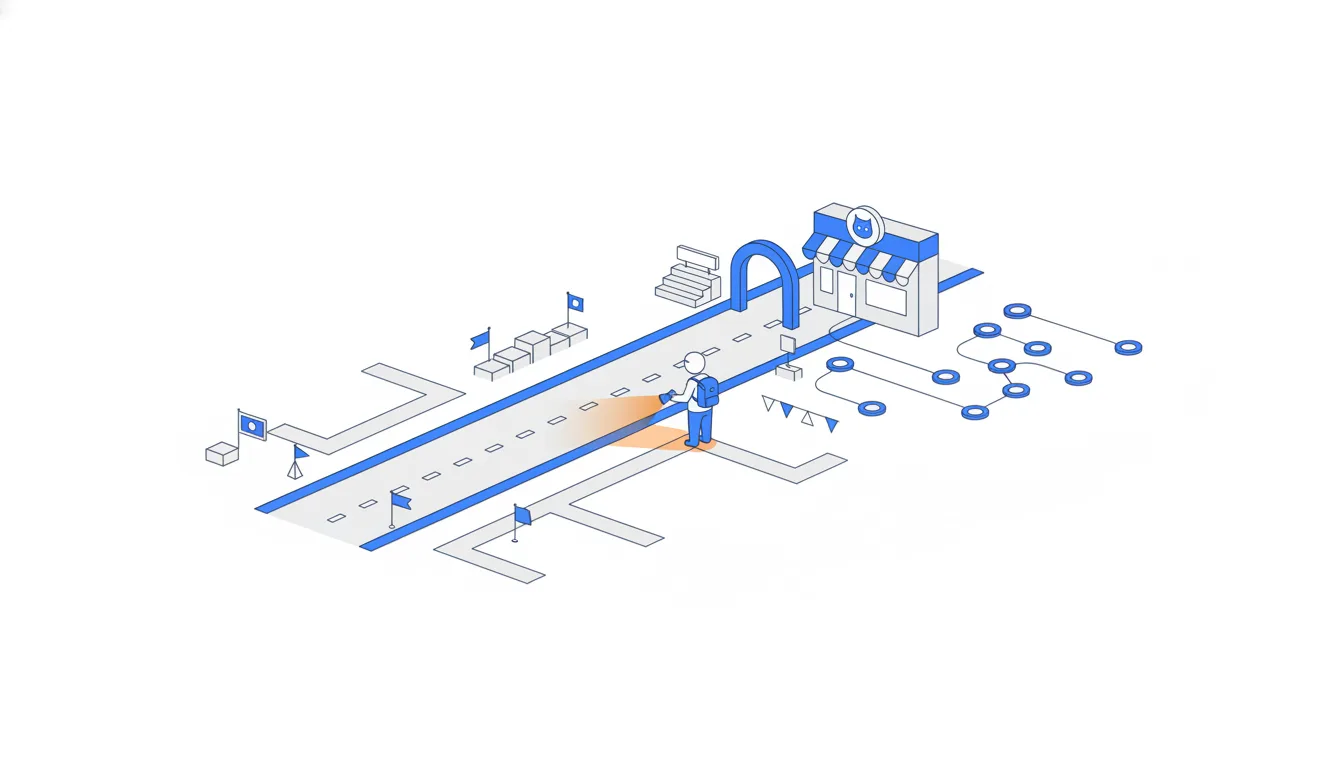
Review where customers will meet the change: on the preview, the temporary copy of the site that the preview check builds for the branch. Open its link on the device your customers use most; at CatChow that's a phone.
First follow the author's “How to test” steps exactly. They prove the happy path works. Then try the edge cases: the less common paths through the same feature, the ones nobody wrote down. For a cart fix, that means:
- removing items one by one with the minus button instead of the bin;
- applying a promo code, then changing a quantity;
- editing the same cart in two browser tabs;
- emptying the cart completely.
Stay inside the feature the pull request touches. The home page logo or the delivery page aren't part of #134, so checking them proves nothing about this change. Reading the test file is the engineer's part of the review.
Write down what you tried. The list goes into your review summary, and it tells the author which cases are already covered.
- DoApply a promo code, then change a quantity, on the preview, on a phone.
A real off-path case inside the changed feature.
- Don'tCheck that the logo still loads on the home page.
Outside the change: proves nothing about #134.
Line comments and pending reviews
In Files changed you don't have to read every file. Each file has a Viewed checkbox (as of 2026): tick the ones you've checked or left to others, and they fold away. On #134 the component and the test are Oscar's; the copy file and the stylesheet are yours.
To comment on a line, hover over it and click the blue +, or drag across several lines. A comment box opens right under the line with two buttons:
Add single commentposts at once and notifies the author.Start a reviewkeeps the comment as pending, so you can add more and send them all together with a verdict.
Pending comments carry a Pending mark, and only you can see them until you submit the review. The author gets everything in one notification, with your verdict on top.
Prefer reviews to single comments. Five single comments are five pings in the middle of someone's work; one review is one ping with your whole thought in it.
- Do
Start a reviewon the hint line, then on the stylesheet line, then submit once.One notification, one complete thought.
- Don'tFive
Add single commentclicks over twenty minutes.Five interruptions, and no verdict at the end.
Suggested changes: write the fix, not a description of it
When the fix is a few exact words, don't describe it. Write it. The comment toolbar has a suggested change button (as of 2026, a small icon with a plus and a minus). It inserts a suggestion block containing the current line, ready for you to edit:
```suggestion
  "checkoutDisabledHint": "Your cart is empty. Add a treat to check out.",
```
Below the block, add a one-line reason: “check out” is the verb, and the tone is friendlier.
The flow: open Files changed, click the blue + on the line, insert the suggestion, edit the line, add the reason, Start a review, and finally submit the review with a verdict.
The author sees a mini-diff with a Commit suggestion button. One click turns your line into a commit on their branch, and GitHub lists you as co-author. Several suggestions can go into a single commit with Add suggestion to batch.
f02a6d4Update FAQ answers3a9d1c4Reproduce bug in a test8be2f70Add cat treats bundleb7e4a05Re-enable button after cart edits6f2c8a1Raise free-delivery threshold to 1000 UAH (#133)a7d93e4Rewrite delivery page copy (#132)mainc2d7f90Update checkout hint copyf7a2b61Restore checkout button colourfix/checkout-button
Commit graph, oldest first: fix/checkout-button after the review 1. commit f02a6d4 on main "Update FAQ answers" 2. branch fix/checkout-button starts from commit f02a6d4 3. commit 3a9d1c4 on fix/checkout-button "Reproduce bug in a test" 4. commit 8be2f70 on main "Add cat treats bundle" 5. commit b7e4a05 on fix/checkout-button "Re-enable button after cart edits" 6. commit 6f2c8a1 on main "Raise free-delivery threshold to 1000 UAH (#133)" 7. commit a7d93e4 on main "Rewrite delivery page copy (#132)" 8. commit c2d7f90 on fix/checkout-button "Update checkout hint copy" (highlighted) 9. commit f7a2b61 on fix/checkout-button "Restore checkout button colour" (highlighted)
- DoA
suggestionblock with the corrected hint, plus “check out is the verb here”.The author applies it in one click.
- Don't“The hint text could be better, maybe something warmer?”
Vague: the author has to guess the words you want.
When a suggestion fits, and when it doesn't
A suggested change replaces exactly the lines you commented on with exactly the text you wrote. That makes it perfect for small, exact fixes: a word in the copy, a typo, a number, a link, a label on a button. You know the right answer, and the author only has to agree.
It's the wrong tool for anything bigger. If the checkout flow needs a different step, if a whole screen should behave differently, or if the fix spans several files, a suggestion can't hold it, and you probably shouldn't pick the solution anyway. Describe the problem instead: what you saw, why it matters to customers, and what a good outcome looks like. Then let the author choose how to get there.
The same goes for code you can't judge. Suggesting a different function name or a rewritten condition looks helpful but turns a product review into an engineering one.
Rule of thumb: if you can write the final text in one line and explain it in one sentence, suggest it. Otherwise, describe it.
- DoA suggestion that changes “Gift mesage” to “Gift message”.
One line, one obvious fix.
- Don'tA suggestion that rewrites the whole checkout component.
Too big: describe the problem and let the author decide.
The scope check
The scope check compares three things: the issue, the description and the diff. Anything in the diff that neither the issue nor the description mentions gets a question, never a silent approval.
In #134 the issue asked for a working checkout button. The diff also changed styles/checkout.css: the main button of the whole shop went from green to orange. Nothing technical stops that from merging. The problem is that it's a visible change for every customer, hidden inside a bug fix that nobody will read as a redesign.
Why that matters for a product team:
- If orders drop next week, nobody will know to look at a “bug fix”.
- The effect can't be measured; it deserves a proper A/B test with its own issue.
- Reverting the colour would also revert the fix, because both live in one pull request.
So ask the author to split it out. A good scope question is friendly and specific: what's extra, why it matters, and where it could go instead.
- Do“The colour change isn't part of #131 and affects every customer. Could we move it to its own issue and test it?”
Names the extra, the reason and a way forward.
- Don'tApprove because the fix works and the orange “looks nice”.
An untested change to every customer slips through.
How to write review comments
Remember who reads your review: a colleague who spent three days on the change and opens your comments at six in the evening. A few habits make comments easy to act on:
- Comment on the change, not the person. “What's the reason for the colour change?” asks the same as “Why did you do this?”, without sounding like an interrogation.
- Say why, not only what. “This is wrong” gives the author nothing to fix.
- Ask when you're unsure. “What happens if a promo code expires while the cart is open?” is a real question, not a hidden accusation.
- Mark small things as optional. Start with “Optional:” (some teams write “nit:”) so the author knows it won't block the merge.
- Say what's good. “The hint shows exactly when the cart is empty, nice” tells the author what to keep.
A good comment is specific, gives a reason and offers a way forward. Tone isn't decoration: comments people are glad to get are the ones that get acted on quickly.
- Do“Optional: ‘Your cart is empty' might read friendlier than ‘Cart is empty'.”
Small, marked optional, with a reason.
- Don't“Why would you make it orange??”
Targets the person and offers no way forward.
Comment, Approve or Request changes
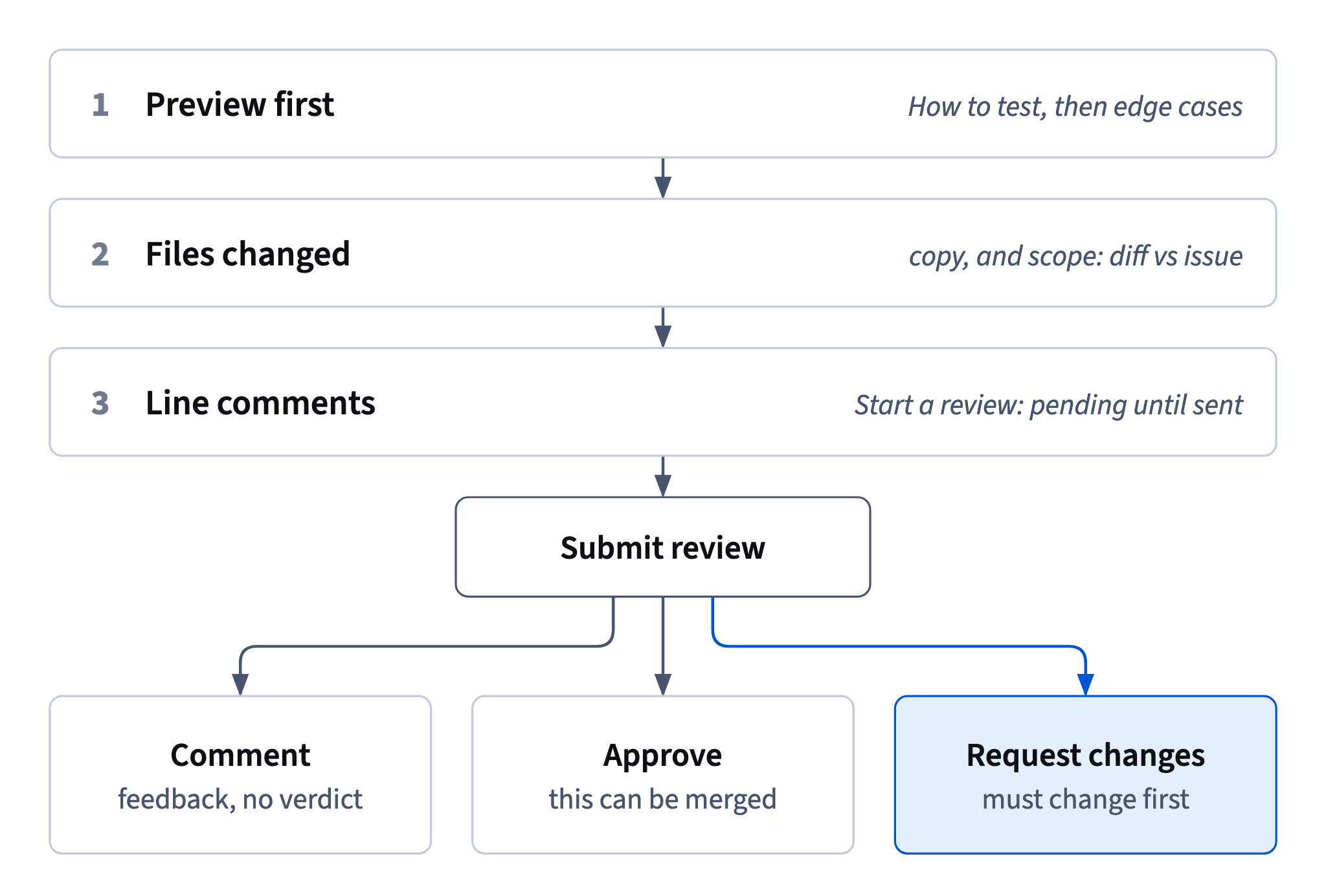
Your comments are pending until you submit the review. Use the review button at the top of Files changed: as of 2026 it says Submit review (older layouts say Review changes). It opens a box for a summary and three options:
Comment: feedback or questions without a verdict.Approve: this can be merged.Request changes: something must change before it's merged.
Start a review and Add single comment come earlier: they decide whether a comment waits for your verdict or goes out alone. The verdict itself is always one of the three above.
The same verdicts exist in a terminal: gh pr review 134 --approve, gh pr review 134 --request-changes -b "..." and gh pr review 134 --comment -b "...".
People often write “LGTM”, “looks good to me”, in an approval. Fine, as long as it's true: an LGTM on a pull request nobody opened is the worst review there is. And Request changes isn't rude. It's precise: the author knows exactly what blocks the merge instead of guessing from a pile of comments.
- Do
Request changeswith a summary: “One blocker: the colour change. The copy suggestion is optional.”The verdict and the summary agree.
- Don't
Approvewith “LGTM” before opening the preview.An approval nobody earned.
Blocker or nice-to-have?
Choosing the verdict comes down to one question: must anything change before customers get this?
- If the change works and your remaining notes are small and optional,
Approveand leave the notes as optional suggestions. The author can apply them now or skip them. - If something would hurt customers or wasn't asked for, such as a visible colour change, a wrong price or a field shown where it shouldn't be,
Request changesand name that blocker in the summary.
Two mistakes sit on either side. Requesting changes over a comma holds up a working fix for a matter of taste. Approving while hoping someone else catches the real problem hands the risk to customers.
The summary is the first thing the author reads, above your line comments. Write it in two to four sentences: what you tried, what works, what blocks (if anything) and why, and which notes are optional. With that, the verdict and the comments tell the same story.
- Do
Approve: “Works on every case I tried. Optional: a friendlier hint, suggestion attached.”Nothing blocks, so nothing is held up.
- Don't
Request changesbecause of a missing full stop in a tooltip.A taste issue holding up a working fix.
Branch protection: the rules on main
Branch protection, or a ruleset in newer settings, is a list of rules GitHub enforces on a branch. At CatChow, main has five:
- changes only through pull requests;
- at least one approving review;
- the
buildandtestchecks must pass; - every conversation resolved;
- the branch up to date with
mainbefore merging.
Two details trip people up. First, a Request changes review from someone with write access holds the merge, even when the approval count is met. It clears when that reviewer approves after the fix, or when someone with the right permissions dismisses the review. Second, authors can't approve their own pull requests, and only reviews from people with write access count towards the rule.
Oscar
Approved these changes
Sofia
Requested changes: colour change is outside #131
After the author fixes things, they re-request your review (the arrows next to your name). Each comment thread has a Resolve conversation button; at CatChow, whoever opened a thread resolves it once satisfied. Then you approve, and the merge box can turn green.
- Do“My review blocks #134 until I approve. I'll re-check as soon as Daniel pushes the fix.”
Owns the block and the next step.
- Don't“Oscar approved, so the rule is met and Daniel can merge.”
A request for changes still holds the merge.
Ready to practise?
Answer the lesson's exercises and earn 250 points the first time you finish it.
Start the exercises